Invites and approvals
People need an invite link and the owner's approval to join a session.
Invite someone with a link
- Select the people icon, then Copy invite link. You can also use the copy button beside the session name.
- Send the link through a private channel.
Invite someone by email
- Select the people icon, then Invite by email….
- Enter their address and select Invite.
Join a session
- Open the invite link, which opens I-IDE. You can also select the people icon, then Join session…, and paste the link.
- Sign in if asked.
- The panel says you've asked the owner to let you in. Leave I-IDE open.
- You join as soon as the owner approves.
I-IDE keeps waiting for 10 minutes. If the owner hasn't answered by then, open the link again to keep waiting. Your request isn't lost.
Approve or decline someone
If you own the session, each request appears below the session title, with the person's email address.
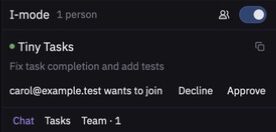
- Select Approve to let them in.
- Select Decline to turn them away. That account can't ask to join this session again.
Only you see these requests. If you're away, they wait until you're next connected.
Tip
Check the email address before you approve, even if you were expecting someone. An invite link can be forwarded.